Introduction

Setup n8n
Before building the assistant, we need to set up n8n. n8n is a no-code workflow automation platform that can orchestrate a wide range of integrations and automations (I may cover some additional examples in future posts).
n8n must be self-hosted on a server. I recommend following the approach from my Coolify VPS setup. If you already have a Coolify instance running, you can simply add a new n8n resource with a few clicks.
Create Workflow
My personal assistant workflow is not entirely self-built. I used one of the many existing templates from the n8n library as a foundation:
Voice & Text Assistant with Telegram, Gemini AI, Calendar, Gmail & Notion.
In the following chapters, I will describe the most important components of this workflow and highlight the modifications I added.
Trigger
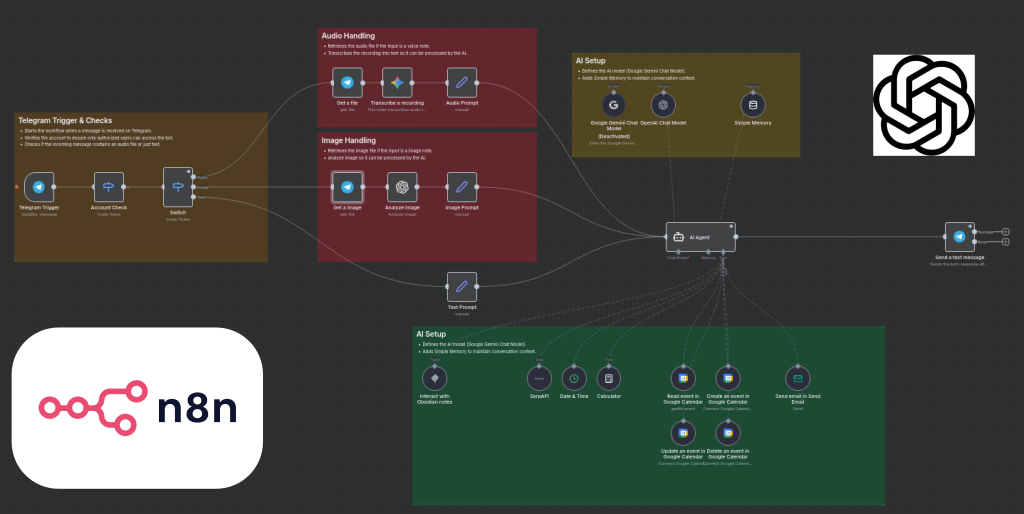
The workflow is triggered by an incoming Telegram message.
To enable this, you first need to create a Telegram bot using BotFather and configure the chat ID in your n8n Telegram node.
You can follow this tutorial for the bot setup:
Once you have the API token, create Telegram credentials in n8n, and the connection to your bot will be established.
If you want to restrict access, you can keep the existing account check, which verifies whether the incoming message originates from the correct chat ID. This is optional but can provide an extra layer of control.
Categorization of Text, Voice, or Image
I replaced the original switch block and introduced logic to differentiate between text, audio, and image messages.
This enables my assistant to process not only text but also voice notes and images.
The following screenshots show how the message types are handled:


To extract the message content, I use Get File nodes with the following file IDs:
| Message Type | File ID |
|---|---|
| Image | {{ $json.message.voice.file_id }} |
| Voice | {{ $json.message.voice.file_id }} |
| Text | — |
After extracting the content, I pass it into prompts similar to the one below:
The user provided the following text as an audio prompt
{{ $json.content.parts[0].text }}
Hint: It is possible that it has some transcription errors.
With this setup, the AI agent can interpret the provided content reliably, regardless of whether it originated as text, voice, or an image.
AI agent
The core of the assistant is the AI agent, which interprets the incoming message and decides how to act.
The original workflow uses Google Gemini as the model backend, but you can replace this with any LLM supported by n8n (OpenAI, Anthropic, local models via Ollama, etc.).
I recommend going with a OpenAI chat model like gpt-5-mini. This got me the best results and only costs about 1$ per month (depending on your usage).
My assistant follows a simple chain:
- Receive input (text, image, or transcribed audio)
- Interpret user intent
- Decide which tool to call (create a task, add an appointment, write a note, etc.)
- Execute the tool via n8n nodes
- Send a human-friendly summary back to Telegram
This makes the system predictable, modular, and easy to extend.
Memory
The memory basically defines how much history your assistant can handle.
In my case I go with the Simple Memory based on {{ $json.message.chat.id }} with a context window length of 20. This means the AI agent always remember your last 20 messages.
MCP tools
The assistant relies on MCP tools (Model Context Protocol tools) provided by n8n to perform the actual actions.
Each tool encapsulates a specific behaviour, for example:
calendar.addEventnotion.createPagetodo.createTaskemail.sendnotes.append
These tools expose structured interfaces that the AI can call.
This means the agent does not create arbitrary text, but instead returns precise commands in JSON format, which n8n executes.
To integrate additional capabilities (for example shopping lists, fitness logs, habit tracking), you only need to add new tools and describe them in the agent prompt. For example in my case I use Obsidian instead of Notion for notes and build an extra MCP server for that (HTTP Obsidian MCP server) which is used by my AI agent.
I further recommend to add the following MCP tools provided by n8n:
- SerpAPI that the AI agent is able to search the web
- Date & Time so the AI agent does not rely on system time
- Calculator because AIs are bad with numbers

Prompting
Clear prompting dramatically improves the agent’s reliability.
I use a structured prompt that gives the AI clear instructions on:
- its role (personal productivity assistant)
- allowed actions (create appointment, add to-do, save note, etc.)
- required output format (JSON command objects)
This is done in the System Message field of the AI agent.
The more effort you spend for prompting, the more it acts as you expect.
Feedback
After the agent completes an action, the workflow generates a short confirmation message and sends it back to Telegram.
This ensures the user always knows what the assistant did.
Examples:
- “Your appointment has been added for Tuesday at 14:00.”
- “I created a new task for tomorrow.”
This feedback loop enhances usability and avoids confusion, especially for voice-driven interactions where the user cannot see the input.
Usage examples
Below are some practical examples that demonstrate what the assistant can do.
Add Appointment to Calendar
You can send messages or even voice notes like:
- “Schedule a meeting with John tomorrow at 10.”
- “Create an appointment for dentist on April 5 at 8:30.”
The assistant parses the date, creates an event using the calendar tool, and returns a confirmation message.
Create Task for Future To-Dos
In my setup, I track tasks using Obsidian. My Obsidian MCP server exposes tools that allow the AI agent to create, update, or query tasks directly in my vault.
This means I can simply tell my assistant:
- “Remind me to take out the trash tomorrow morning at 7.”
- “Do I have any tasks in my notes related to my n8n project?”
The agent interprets the request, selects the appropriate MCP tool, and the task is added or retrieved automatically.
Adding Cooking Recipes to Notes
One use case I particularly enjoy is generating and saving personal cooking recipes, including a structured list of ingredients.
I can ask my assistant something like:
- “I want to cook a low-fat version of Chicken Masala. Please provide a recipe for four people.”
- “This recipe looks perfect. Scale it to six people and save it in my Obsidian vault.”
In the system prompt, I defined exactly how my recipes should be formatted and that the agent may use existing recipes as templates.
The result is a neatly structured recipe stored directly in my notes, complete with ingredient list—ideal for planning meals and grocery shopping.