
Introduction
Self-hosting has become an excellent way to gain hands-on experience with server administration, DevOps tooling, and modern deployment platforms. My goal was to provision a virtual private server (VPS), secure it properly, and use it as a small but flexible platform for deploying backend components that support my app development workflow.
Typical workloads include lightweight services such as PocketBase for backend storage, Unleash for feature flags, and automation tools like n8n. I also planned to use the server for file synchronization via Syncthing and other experiments over time.
To streamline deployment and app lifecycle management, I chose Coolify, an open-source PaaS that abstracts container orchestration into a friendly dashboard. This post documents the initial VPS setup, basic hardening steps, Tailscale integration, and deploying the first application.
Server hosting
Choosing the right hosting provider depends on budget, proximity, bandwidth, and support. Any provider offering a modern Linux distribution and at least 2 GB RAM will run Coolify comfortably. After provisioning the instance, note the following:
- Server location and plan
- Operating system image (e.g., Ubuntu 22.04 LTS)
- Basic credentials provided by the host
- Public IP address

In my case I decided to go with a VPS hosted by netcup.
I started the project using the smallest VPS option VPS 250 G11s but later on upgrade to the second option VPS 500 G11s.
This costs me about 5€ per month (including private domain) and provides enough ressources for everything I need.
Server access
SCP
For the first access it is possible to connect to the server using the server control panel provided by netcup. The first time you are logged in to the VPS as root user, so the first thing to do is setting up a different user.
Setup user
# Debian systems
adduser <username>
usermod -aG sudo <username>
This creates the user, prompt for password, creates the home directory of the user and set basic defaults. The second command is to add the user to the sudo group. With that it is possible to execute commands with elevated user rights using sudo.
# Switch to new user
sudo su - <server-user>
Get ssh access
For that a ssh key has to be generated on the client machine.
ssh-keygen -t ed25519 -b 4096 -C "your_email@example.com"
This prompts for name of the key, location and passphrase.
The key should be saved to /home/$USER/.ssh/<ssh-key>. The passphrase can stay empty.
This will create 2 files: and <ssh-key.pub>.
To get ssh access to the VPS the content of <ssh-key.pub> must be copied to /home/<server-user>/.ssh/autorized_keys. If the file does not exist, it has to be created.
You can use nano or vi as command line text editor to do that.
Pay attention to the user rights of that file.
sudo chmod 600 /home/<server-user>/.ssh/authorized_keys
sudo chown <server-user>:<server-user> /home/<server-user>/.ssh/authorized_keys
After doing this ssh setup the VPS can be accessed from the client using:
ssh <server-user>@<server-ip>
Server hardening
To ensure that in the future only you can login to the server we harden the server using two things.
Login restrictions
SSH only access
Login with password will be forbidden
/etc/ssh/sshd_config):PasswordAuthentication no
No root login
No login as root user possible.
/etc/ssh/sshd_config):PermitRootLogin no
Firewall
For better security we want to block all ports we do not need. For this purpose we use the uncomplicated firewall (UFW).
# Installation
sudo apt install ufw

# Setup
sudo ufw default deny incoming
sudo ufw default allow outgoing
sudo ufw allow 22/tcp #ssh
sudo ufw allow 80/tcp #http
sudo ufw allow 443/tcp #https
sudo ufw enable
Tailscale
The next step on our way to a bulletproof VPS server is setting up a virtual private network (VPN). This ensures only people in that network are able to access the VPS.
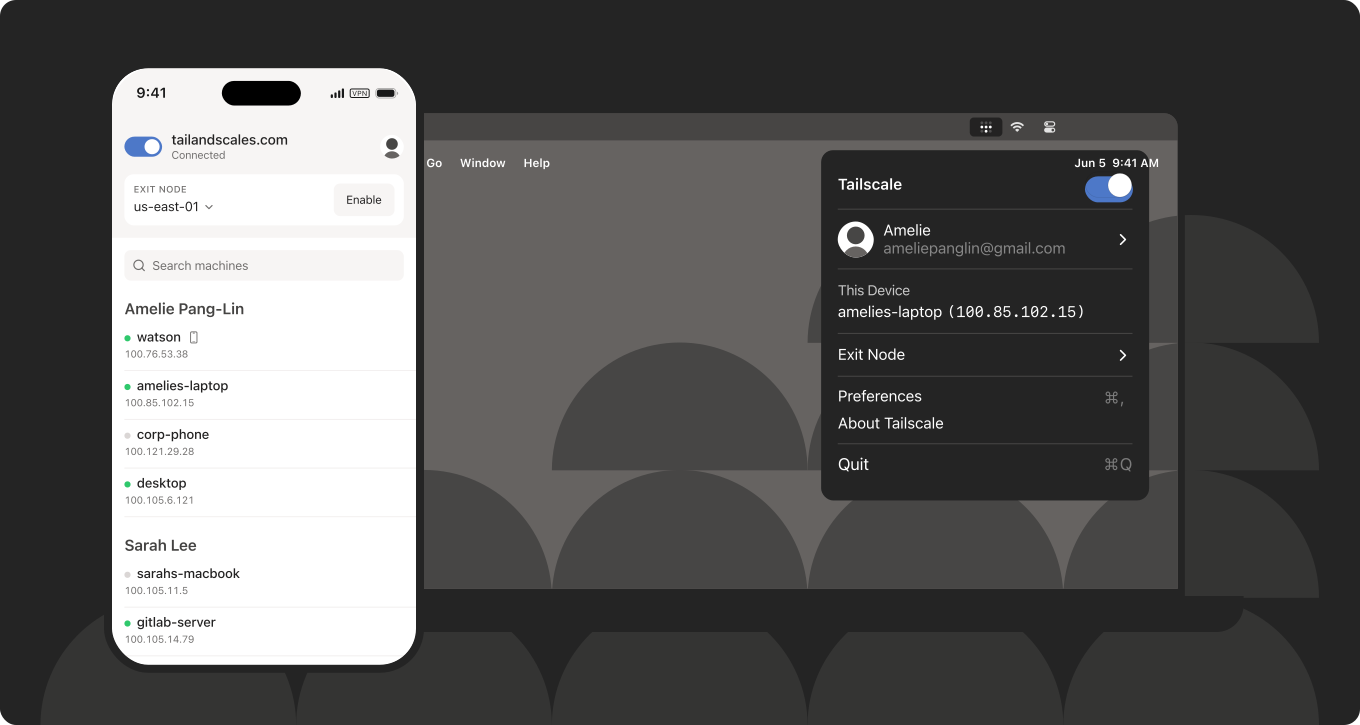
A very easy to setup, and easy to use VPN is Tailscale. It uses WireGuard under the hood to create encrypted point-to-point connections between your devices.
Setup
Before setting up Tailscale it is recommended to disable firewall to not get locked out of the VPS.
sudo ufw disable
For Debian systems easily execute this command on your VPS to install Tailscale:
curl -fsSL https://tailscale.com/install.sh | sh
Starting Tailscale
sudo tailscale up --ssh
tailscale ip
After starting Tailscale and login to the Tailnet. The second command will print your servers Tailscale-IP.
Now the Tailscale ports have to be added to the UFW:
sudo ufw allow in on tailscale0
Before reenabling the firewall try to login to your VPS using:
ssh <server-user>@<tailscale-ip>
If this login works fine the firewall can be restarted.
sudo ufw reload
sudo service ssh restart
With this you now have a VPS which is pretty secure. The login only works from a client in the Tailnet with the and the .
Installing Coolify
The next step is to install our platform Coolify using the official script:
curl -fsSL https://cdn.coollabs.io/coolify/install.sh | bash
Before going on we have to allow Coolfiy network communication to the firewall. To do so we have to inspect the networks of the docker bridge and Coolify running these commands:
sudo docker network inspect bridge
sudo docker network inspect coolify
The output should result in something like this:
[
    {
        "Name": "coolify",
        "Id": "6103a5aa95d01b69bba2d662f8b1d66645a8ab909ff45499e905e5b36302cf57",
        "Created": "2025-02-01T18:09:18.815150113+01:00",
        "Scope": "local",
        "Driver": "bridge",
        "EnableIPv4": true,
        "EnableIPv6": false,
        "IPAM": {
            "Driver": "default",
            "Options": {},
            "Config": [
                {
                    "Subnet": "10.0.1.0/24",
                    "Gateway": "10.0.1.1"
                }
            ]
        },
.
.
.
Note the Subnet of the IPAM -> Config of the bridge and Coolify.
Note the Gateway of the IPAM -> Config of the bridge.
With these three values the new firewall rules can be added:
sudo ufw allow from <subnet-bridge> to <gateway-bridge>
sudo ufw allow from <subnet-coolify> to <gateway-bridge>
sudo ufw reload
sudo service ssh restart
Finish the installation by accessing the Coolify web UI on http://<tailscale-ip>:8000 from inside the Tailnet and follow the instructions.
Syncthing Deployment in Coolify
- In Coolify, create a new project (e.g.
VPS production). - Add resources (e.g.
Syncthing)
- Configuration > General > define service name and service url.

- Deploy the container.
- Access Syncthing via service url.